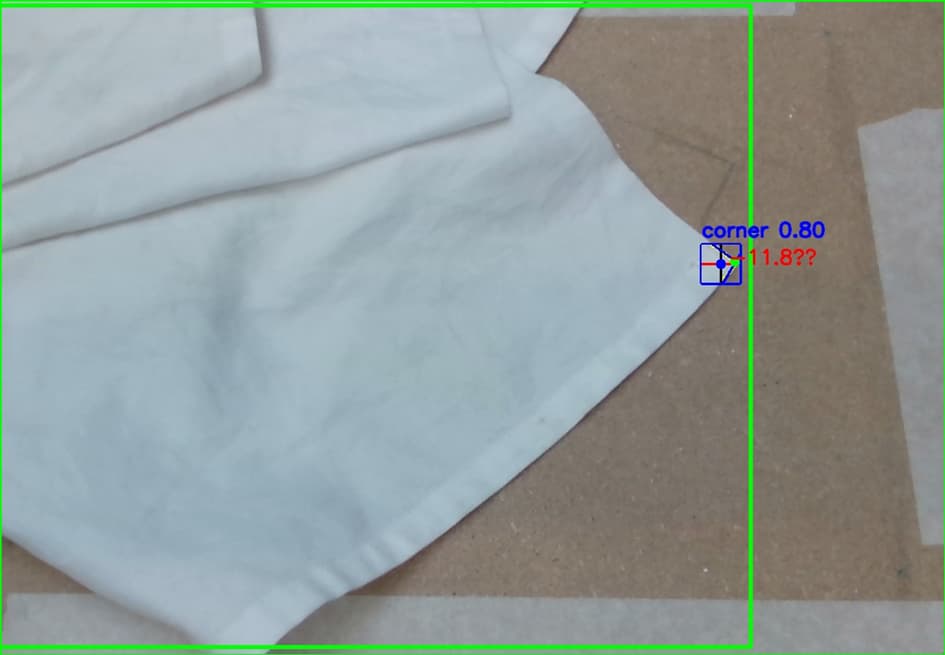
For some use cases it’s better to train an AI than to use OpenCV code to detect objects. In this tutorial you can get the basics of how you can train and implement your own AI for detection. In this tutorial we use an existing Yolo AI model and use Roboflow to make images to use for editing. The Yolo AI model used in this tutorial is an object detection model. There is also a small part how to get coordinates from the AI model for pickup points. That part is not needed if you’re AI model isn’t used for pickup points.
Training AI
Before training an AI it’s important to know what you want to train. So, make sure you have decided what to detect. To train the AI you will need enough images so it can train. When making the images try to make them so it will be just like your actual final setup. Also keep in mind lighting is important when using AI on realtime. You can minimise lighting by adding light or using an enclosed box to reduce lighting variables. To reduce the lightning issues, you can make more photos during different times of the day to train the AI with those settings. Finally, make some images without the object in frame. This is needed so that the AI knows when there is and isn’t an object.
When creating a new project on Roboflow you get the choice to decide the project type. This is important as it will decide how your object is going to be detected. In most cases object or keypoint detection are the best to use:
- Object detection makes a box around the detected object.
o This is helpful for simpler AI models when exact points are not necessary, but a box is enough. In this tutorial this type of detection will be used. - Keypoint detections identifies keypoints with a sort of skeleton shape.
o When dealing with more complex forms or shapes, you can decide to use keypoint detection. With keypoint the AI will detect a skeleton shape in the object, so you will have more accuracy for precise points.
After deciding the project type its time to start annotating images. Upload the images and start making the boxes or keypoints.
When making the bounding boxes make sure not to make them too big or too small you should have your object perfect in frame. For example the towel and corners of a towel.
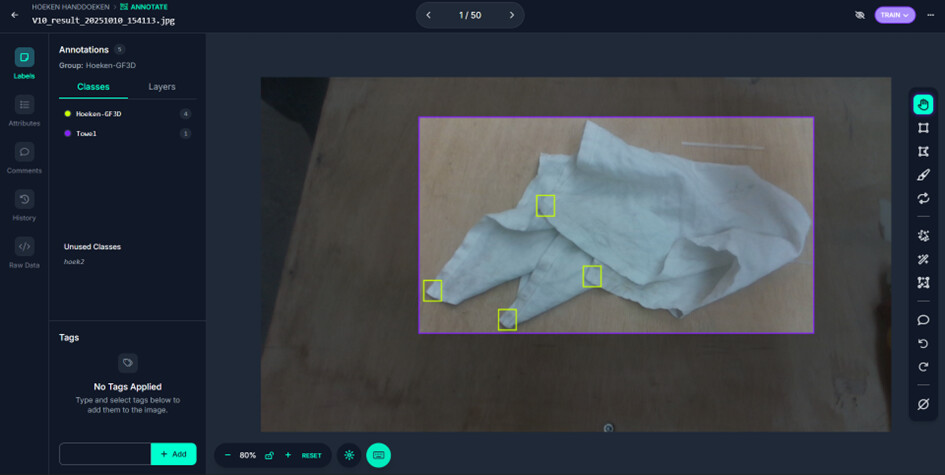
Once done with the annotation you can create a new version. A version is the whole dataset which you can export to train the AI with. Choosing image size is also important. In most cases 640x640 is enough, but you can decide to use 1280x1280 when training. Choosing a bigger display also means longer training time and detection time. You can also add augmentations to the photo, so you can train it with more photos than you made. Make sure to not exaggerate the augmentations and keep them for what can happen in your setup. After all these settings you can download the version. With an AI model from Yolo make sure the downloading format is also the correct Yolo model you’re using.
Code to get AI detection working
Once you have annotated the images you can start training the AI. Open your IDE and and make sure the following packages are installed:
- Ultralytics
- CUDA if you’re using a PC with a GPU. You can ask ChatGPT which version of CUDA you need to install to train a YOLO model.
The following code can be used for object detection. The code for keypoint detection is different and can be googled:
Main.py:
from ultralytics import YOLO

# Load a pretrained YOLO11n model
model = YOLO("yolo11n.pt")

# Train the model on the COCO8 dataset for 100 epochs
train_results = model.train(
    data="coco8.yaml",  # Path to dataset configuration file
    epochs=100,  # Number of training epochs
    imgsz=640,  # Image size for training
    device="cpu",  # Device to run on (e.g., 'cpu', 0, [0,1,2,3])
)
coco8.yaml:
path: C:/AI-Hoeken_towels
train: images/train5
val: images/train5

names:
  0: Hoek
After training an AI you can use some more images to test if it works like it should. In most cases more trainings are required to get the AI fully working, but this depends on what needs to detect. To check the AI working on a camera the following code can be used:
import cv2
from ultralytics import YOLO

def main():
    # load a pretrained model
 # here you need to add the path to your ai model
#example: #r"C:\Users\aashi\PycharmProjects\PythonProject\runs\detect\train18\weights\best.pt"

    model = YOLO("yolo11n.pt")  # of een ander gewicht dat je hebt

    # Open the webcam
    cap = cv2.VideoCapture(0)
    if not cap.isOpened():
        print("webcam cannot be opened")
        return

    while True:
        ret, frame = cap.read()
        if not ret:
            break

        # run the AI on the image
        results = model.predict(frame, verbose=False)

        # Draw the boxes onto the image
        for r in results:
            boxes = r.boxes
            for box in boxes:
                x1, y1, x2, y2 = map(int, box.xyxy[0])
                conf = box.conf[0].item()
                cls = int(box.cls[0].item())
                label = f"{model.names[cls]} {conf:.2f}"
                cv2.rectangle(frame, (x1,y1), (x2,y2), (0,255,0), 2)
                cv2.putText(frame, label, (x1, y1-10),
                            cv2.FONT_HERSHEY_SIMPLEX, 0.5, (0,255,0), 2)

        # Show the screen
        cv2.imshow("YOLO11 Webcam", frame)
        if cv2.waitKey(1) & 0xFF == ord('q'):
            break

    cap.release()
    cv2.destroyAllWindows()

if __name__ == "__main__":
    main()
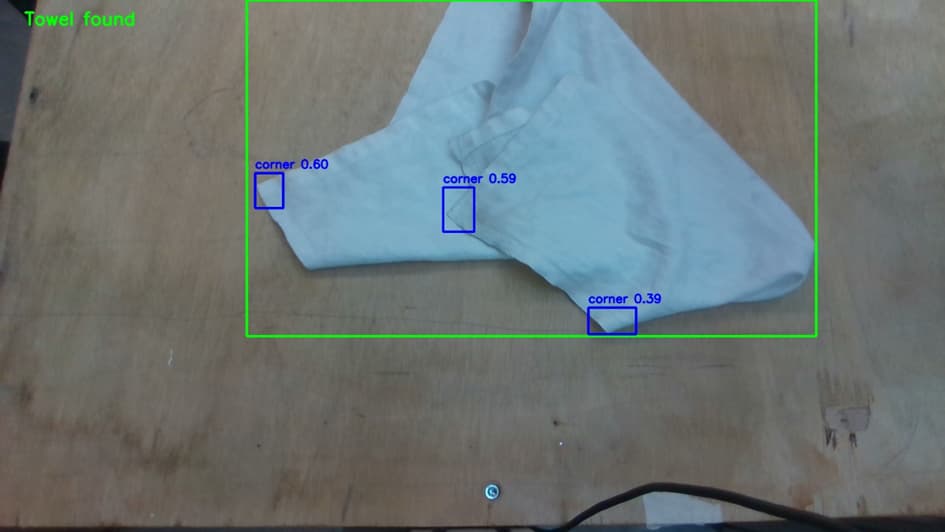
Transferring the AI detection to coordinates
After training and running the AI you can start to get the coordinates needed. You can easily get the middle point of the bounding boxes with these coordinates:
results = model(frame)
    boxes = results[0].boxes

    if len(boxes) > 0:
        confs = boxes.conf.cpu().numpy()
        max_idx = confs.argmax()
        best_box = boxes.xyxy[max_idx].cpu().numpy()
        x1, y1, x2, y2 = best_box
        cx, cy = (x1 + x2) / 2, (y1 + y2) / 2

        print(f"Most confident center: ({cx:.2f}, {cy:.2f})")

        # Draw box and center
        cv2.rectangle(frame, (int(x1), int(y1)), (int(x2), int(y2)), (0,255,0), 2)
        cv2.circle(frame, (int(cx), int(cy)), 5, (0,0,255), -1)
If the bounding box is not enough you can use OpenCV code to check for the perfect point in the bounding box. Using an AI in combination with OpenCV code will help you make a perfect version to get the perfect pickup point