Based on contributions by AdriaanMeijer.
A handful of shortcuts and habits can significantly cut the time you spend sketching and building parts in SolidWorks. This collects the most useful ones for sketches, parts, and general navigation.
What you need
- SolidWorks.
Steps
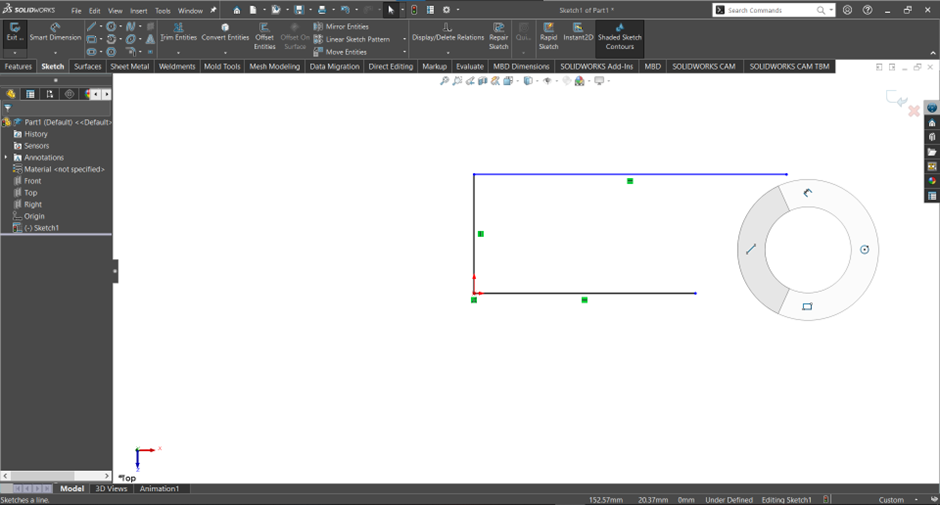
1. Use the mouse gesture wheel for sketch tools
Hold the right mouse button while sketching to bring up the quick-access wheel. By default it gives you Smart Dimension (top), Line (left), Circle (right), and Rectangle (bottom). This cuts down on mouse travel to the toolbar, which adds up over a long modelling session. You can customize which tools appear on the wheel under Tools → Customize → Mouse Gestures.
2. Draw a curved line without switching tools
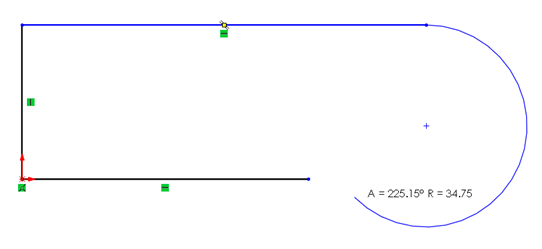
With the Line tool active, start a line, drag it out a little, then drag back to its own starting point and continue dragging past it. Done correctly, this turns the line into a curve as you drag — so you can sketch a line, then immediately continue it as a curve, without switching tools.
3. Use mirror and pattern for repeated geometry
If a sketch is symmetrical, use Mirror Entities instead of drawing both halves — this halves the number of dimensions you need to maintain, so changing the sketch later only means changing one side. The same applies to repeated features like a row of holes: use Linear Sketch Pattern instead of drawing each one individually.

4. Use relations for dimensions that should match but aren’t symmetric
When two dimensions should stay equal but aren’t part of a mirrored/symmetric sketch, use a geometric relation instead of typing the same number twice. Select both lines and use the relation options on the left of the screen:
- Horizontal/Vertical: makes the lines parallel to each other and aligned to one axis.
- Collinear: makes the lines lie on the same line.
- Equal: makes the lines the same length.
You can apply multiple relations to the same pair of lines.
5. Minimize the number of features
Where possible, build a feature (like a hole) directly into the sketch of an extrusion instead of adding a separate cut feature afterward. Fewer features keep your model tree simpler and easier to navigate and edit later.
6. Switch between open files quickly
If you have multiple files open in SolidWorks, use Ctrl+Tab to switch between them: tap it to jump to the last file you had open, or hold it to see all open tabs and pick one.
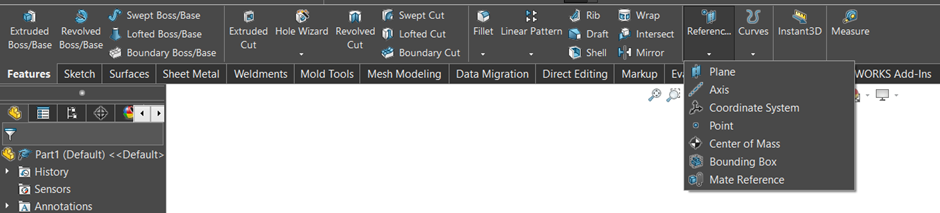
7. Add reference planes when you’re stuck on an angle
If it’s hard to find the right angle or plane for a feature, add a reference plane instead of fighting with an existing one.
8. Use Convert Entities to reuse existing geometry
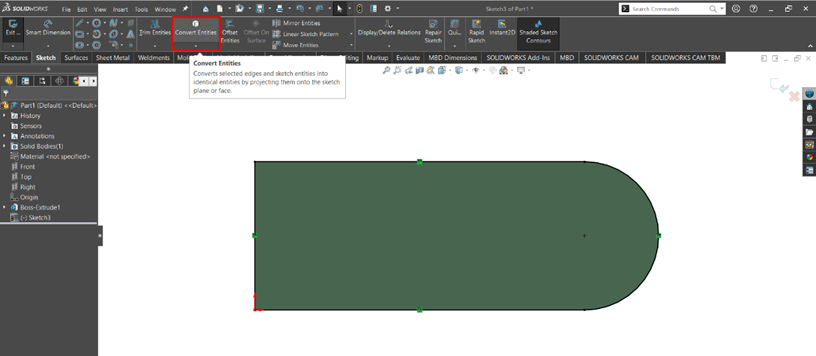
When you need to sketch along an existing surface edge, select the surface while in a sketch, then use Convert Entities. This creates sketch lines linked to that surface — if the surface changes later, your sketch updates with it automatically.
Related
Rewritten and consolidated (Sept 2026) from the original student how-to’s: How to speed up your modelling process.